
Published Mar 28, 2026
A step-by-step tutorial on how to set up the Pelican game server panel and Wings node in Docker, with Nginx Proxy Manager as a reverse proxy. This guide will walk you through the installation process and help you get your first Minecraft server up and running with Pelican.
Written by Andrew Flores
This is an updated version of my original Pelican in Docker tutorial from 2024, updated for 2026 with the latest versions of Pelican and Wings. The installation process is mostly the same, but there are some new features and changes to be aware of.
Over time, the official documentation for running Pelican in Docker has evolved and become simpler, and the maintainers always publish an official Docker image for each release that we can use instead of building the images ourselves.
Assumptions
In order to keep this guide relatively concise, we need to assume a few things about your setup.
- Debian-based Linux distro (Ubuntu) with Docker installed
- Familiarity with Docker and Docker Compose
- You own a Domain name and have your reverse proxy set up to hand out wildcard SSL certificates. We will use Nginx Proxy Manager (NPM) in this guide, but similar concepts apply to other reverse proxies. It is best if the reverse proxy is running on a different machine or VM on your network than where Pelican will be running.
Getting Started
The first part of this guide will be setting up and configuring the Pelican Panel web interface. The panel is where you will manage your game servers, and it also serves as the central hub for your Wings nodes to connect to. The panel will be running in a Docker container, and we will use Docker Compose to manage the stack. The second part of the guide will be setting up a Wings node, which is the service that actually runs your game servers. Wings will also be running in a Docker container on the same machine as the panel, but it could also be run on a different machine if you wanted to distribute your nodes across multiple servers.
- SSH into your debian-based linux machine on which to install Pelican
- Update package repositories with
sudo apt update && sudo apt upgrade -y - Install Docker and Docker Compose
- Make a pelican directory in home folder with
mkdir ~/pelican && cd ~/pelican - Create a Docker Compose file in the pelican directory with
touch ~/pelican/docker-compose.ymland paste the following contents, replacing<YOUR_EMAIL_HERE>with your email address,<YOUR_NPM_IP_ADDRESS>(e.g. 192.168.1.100) with the IP address of your reverse proxy (no port required assuming it’s listening on ports 80 and 443 already), and<YOUR_HTTPS_PANEL_URL_HERE>with the HTTPS URL of your panel (e.g., https://pelican.local.example.com).
services: panel: image: ghcr.io/pelican-dev/panel:latest container_name: pelican_panel restart: always networks: - default ports: - "80:80" - "443:443" extra_hosts: - "host.docker.internal:host-gateway" volumes: - pelican-data:/pelican-data - pelican-logs:/var/www/html/storage/logs - ./Caddyfile:/etc/caddy/Caddyfile environment: XDG_DATA_HOME: /pelican-data APP_URL: "<YOUR_HTTPS_PANEL_URL_HERE>" ADMIN_EMAIL: "<YOUR_EMAIL_HERE>" BEHIND_PROXY: "true" TRUSTED_PROXIES: "<YOUR_NPM_IP_ADDRESS>"
volumes: pelican-data: pelican-logs:
networks: default: ipam: config: - subnet: 172.20.0.0/16Then create a Caddyfile in the same directory ~/pelican/Caddyfile (no file extension) with the following contents, replacing <YOUR_NPM_IP_ADDRESS> with the IP address of your reverse proxy. The Caddyfile is used to configure the web server that serves the Pelican panel. We need to tell Caddy to trust our reverse proxy so that it can properly handle requests and forward them to the panel
{ admin off servers { trusted_proxies static <YOUR_NPM_IP_ADDRESS> }}
:80 { root * /var/www/html/public encode gzip
php_fastcgi 127.0.0.1:9000 { env PHP_VALUE "upload_max_filesize = 512M post_max_size = 512M" } file_server}Accessing the Panel
Start the Docker Compose stack with docker compose up -d. Note: You may need to prefix your docker commands with sudo if your user is not in the docker group
View the logs with docker logs -f pelican_panel
Since we are using NPM as a reverse proxy to access our panel at a custom domain, we need to add a “Proxy Host” entry in NPM pointing at our server. As seen in the compose file, we are exposing ports 80 and 443 for HTTP and HTTPS traffic, respectively.
In NPM, add a new Proxy Host with the following settings:
- Domain Name:
<YOUR_HTTPS_PANEL_URL_HERE>(same as the APP_URL in the compose file, without the https:// prefix. e.g.pelican.local.example.com) - Scheme: http
- Forward Hostname/IP: 192.168.1.XXX (IP of your Pelican server)
- Forward Port: 80
- Websockets Support: Enabled
- Block common exploits: Enabled
- SSL Tab -> Select your certificate for the domain and check “Force SSL” and “HTTP/2 Support”
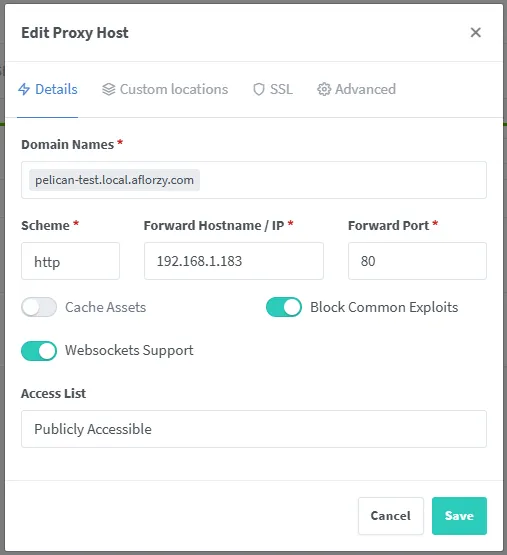
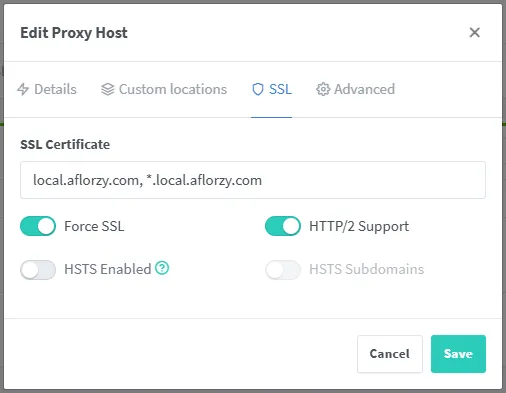
Then navigate your browser to the domain you set up in NPM with the path /installer appended and you should see the Pelican panel login page (e.g. https://pelican.local.example.com/installer).
Setup Steps
01 Server Requirements:
Everything should be filled out on this page already and you can click Next in the bottom right.
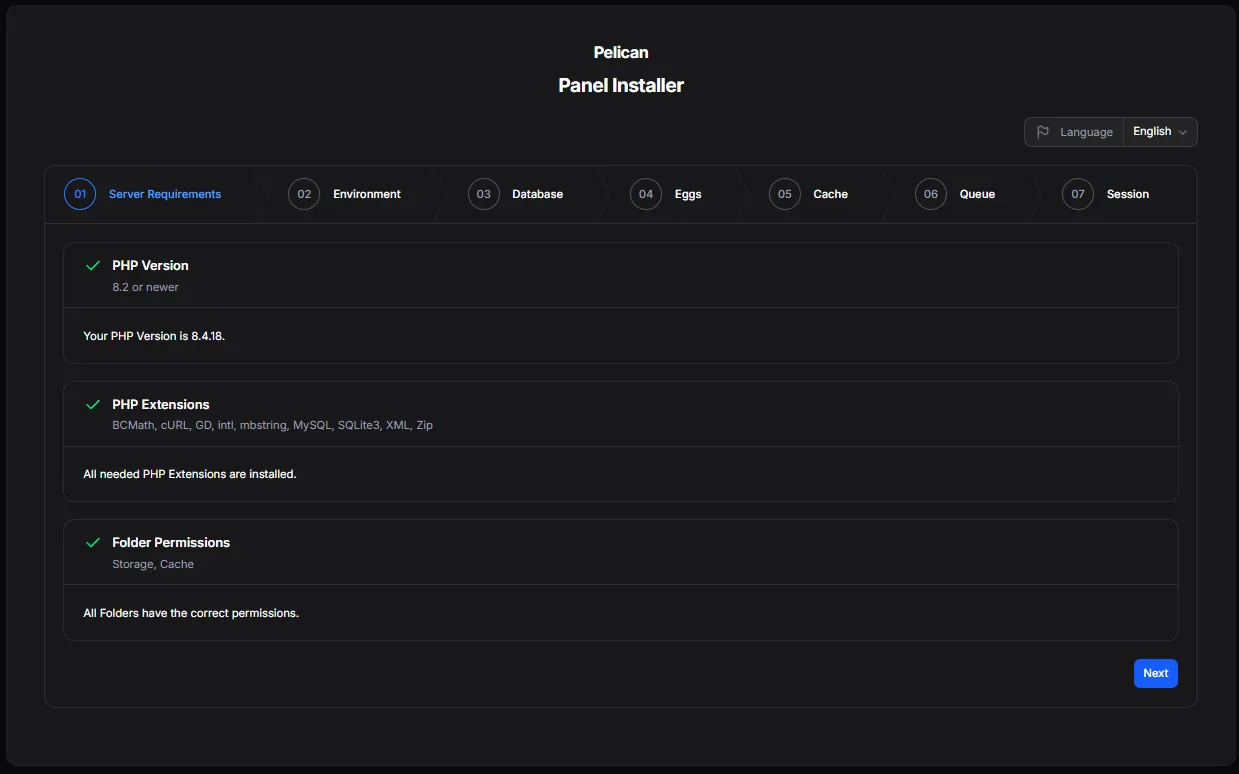
02 Environment:
Here you will see your App Name and App URL pre-filled. You can change the App Name if you want, but make sure the App URL is correct and matches the APP_URL in your compose file. Then click Next in the bottom right.
This is where you will set up your admin account. Fill out the email, username, and password fields and click Next in the bottom right.
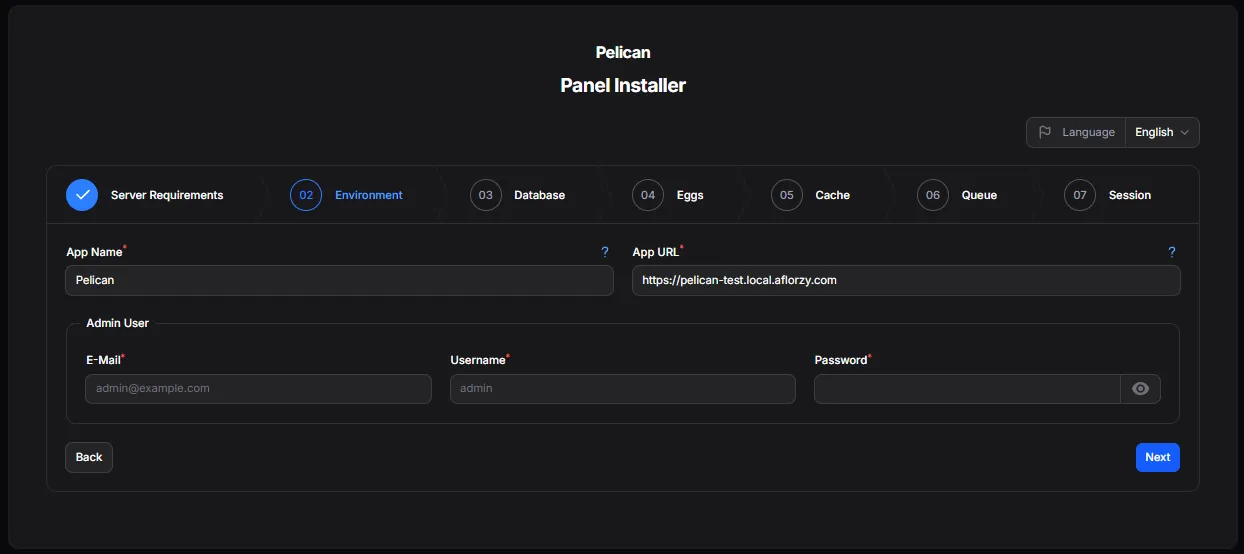
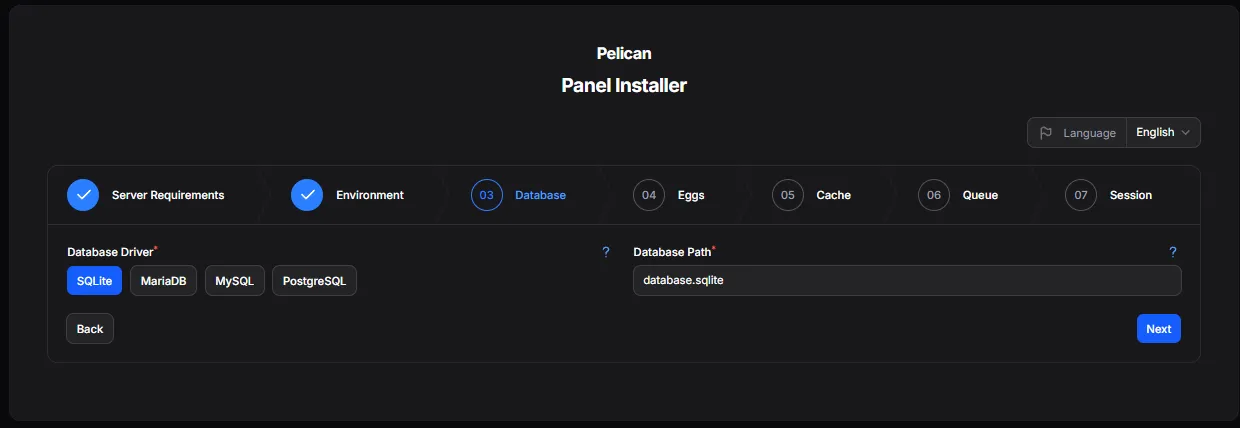
03 Database:
We will use the default SQLite database so you can just click Next in the bottom right.
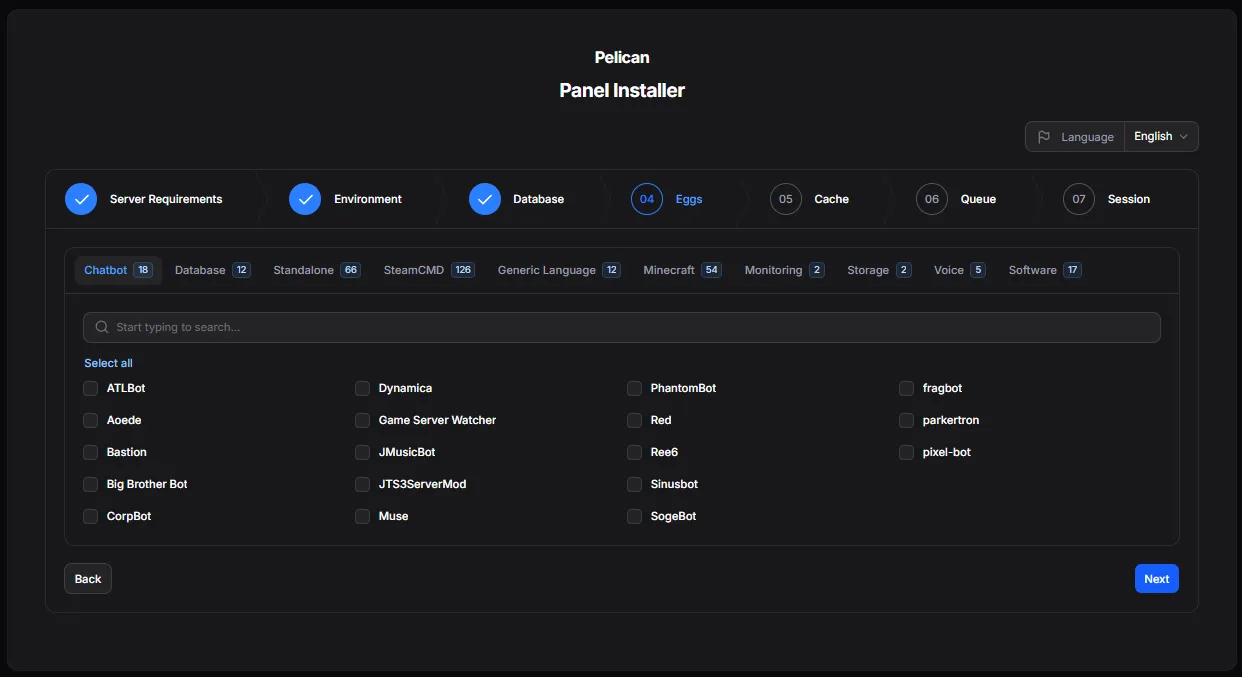
04 Eggs:
Eggs are Pelican’s name for plugins. There are hundreds of eggs available and you can choose any on this page if you’d like, but I would recommend sticking with the defaults for now. You will be able to install more eggs later from the panel. Click Next in the bottom right when you’re ready.
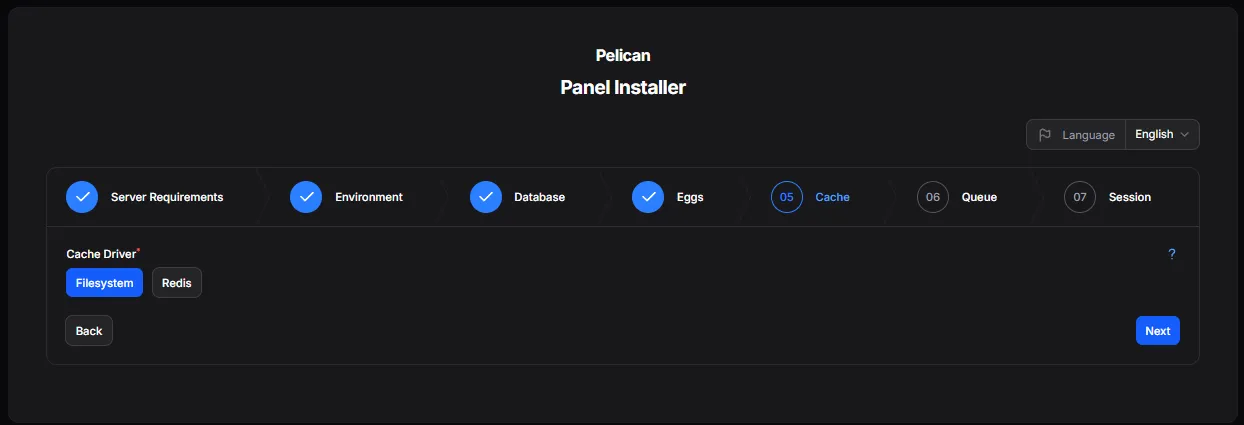
05 Cache:
Choose the default Cache Driver of “Filesystem” and click Next in the bottom right.
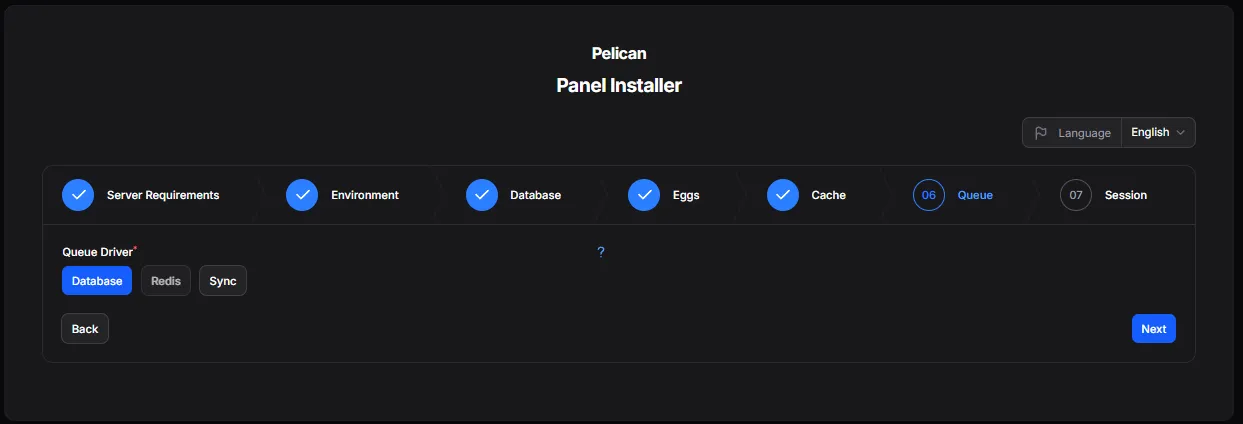
06 Queue:
Choose the default Queue Driver of “Database” and click Next in the bottom right.
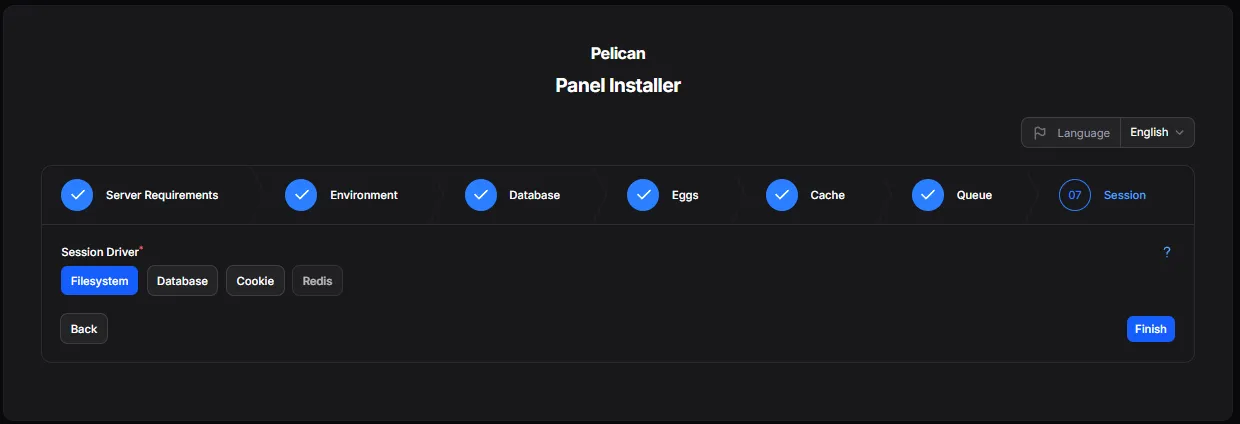
07 Session:
Finally, choose the default Session Driver of “Filesystem” and click Finish in the bottom right.
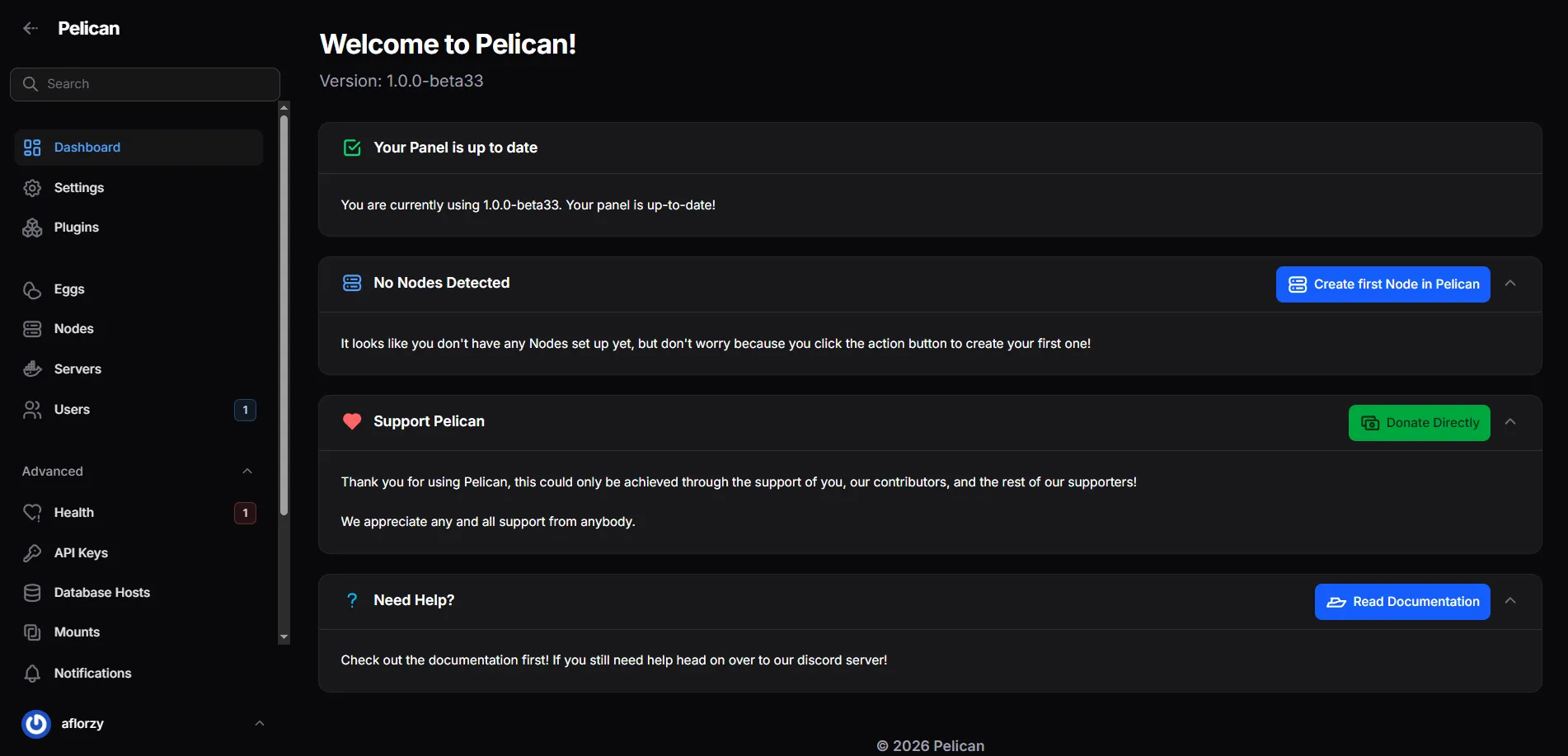
Congratulations! You’ve successfully installed the Pelican panel in Docker. You can click through the tabs on the left and get familiar with the interface and settings. Next, we will set up a Wings node to run our first Minecraft server!
(Note: If your Health tab has an error about the Database, don’t worry - it should go away in a few minutes once the panel finishes setting up the database and runs the health checks again.)
Setting up a Wings Node
The official Pelican Wings documentation doesn’t have instructions for running Wings in Docker, but it’s actually very simple to set up. We will modify our Docker Compose file to add a new service for Wings.
Update your docker-compose.yml file to look like this, replacing <YOUR_EMAIL_HERE> with your email address, <YOUR_NPM_IP_ADDRESS> with the IP address of your Reverse Proxy, and <YOUR_HTTPS_PANEL_URL_HERE> with the HTTPS URL of your panel (e.g., https://pelican.local.example.com).
services: panel: image: ghcr.io/pelican-dev/panel:latest container_name: pelican_panel restart: always networks: - default ports: - "80:80" - "443:443" extra_hosts: - "host.docker.internal:host-gateway" volumes: - pelican-data:/pelican-data - pelican-logs:/var/www/html/storage/logs - ./Caddyfile:/etc/caddy/Caddyfile environment: XDG_DATA_HOME: /pelican-data APP_URL: "<YOUR_HTTPS_PANEL_URL_HERE>" ADMIN_EMAIL: "<YOUR_EMAIL_HERE>" BEHIND_PROXY: "true" TRUSTED_PROXIES: "<YOUR_NPM_IP_ADDRESS>"
wings: image: ghcr.io/pelican-dev/wings:latest container_name: pelican_wings restart: unless-stopped networks: - wings0 ports: - "2022:2022" - "8443:443" - "8080:8080" environment: TZ: "UTC" WINGS_UID: 998 WINGS_GID: 998 WINGS_USERNAME: pelican volumes: - "/var/run/docker.sock:/var/run/docker.sock" - "/var/lib/docker/containers/:/var/lib/docker/containers/" - "/etc/pelican/:/etc/pelican/" - "/var/lib/pelican/:/var/lib/pelican/" - "/var/log/pelican/:/var/log/pelican/" - "/tmp/pelican/:/tmp/pelican/" - "/etc/ssl/certs:/etc/ssl/certs:ro"
volumes: pelican-data: pelican-logs:
networks: default: ipam: config: - subnet: 172.20.0.0/16
wings0: name: wings0 driver: bridge ipam: config: - subnet: 172.21.0.0/16 driver_opts: com.docker.network.bridge.name: wings0Restart the stack with docker compose down && docker compose up -d. Both the Panel and Wings containers should start up. If you check the Panel logs with docker logs -f pelican_panel, you should not see any errors, but when you check the Wings logs with docker logs -f pelican_wings you will see the below error:
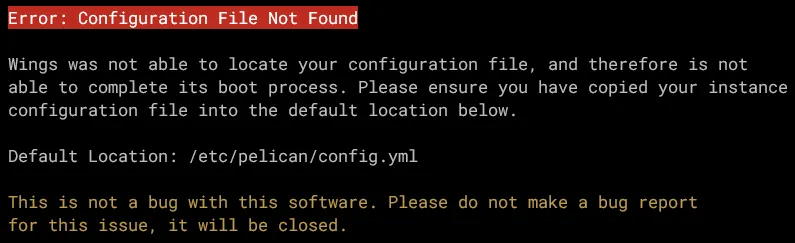
This is completely normal, as the Wings container is looking for its configuration file, but we haven’t set up the node in the panel yet so the config file hasn’t been generated. Let’s fix that now!
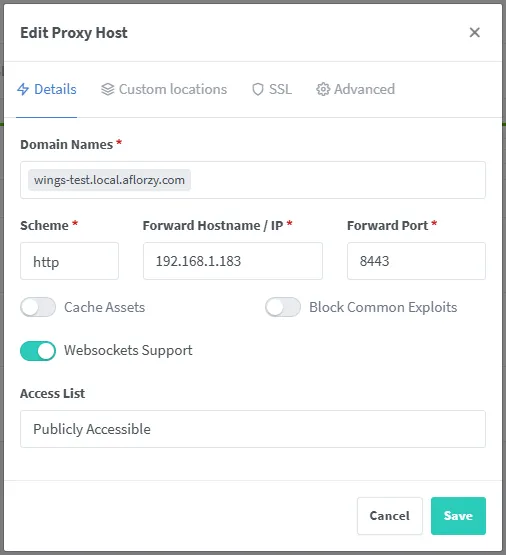
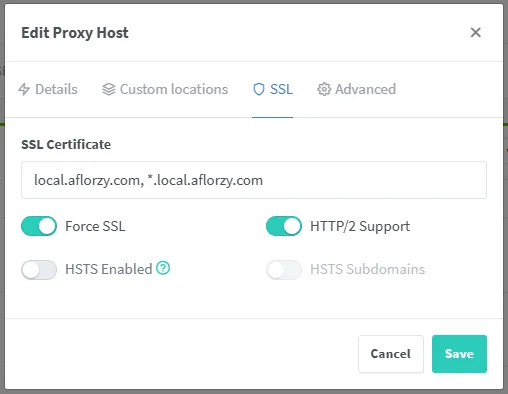
Create a Proxy Host in NPM for the Wings node with the following settings:
- Domain Name:
wings.local.example.com - Scheme: http
- Forward Hostname/IP: 192.168.1.XXX (IP of your Pelican server)
- Forward Port: 8080
- Websockets Support: Enabled
- SSL Tab -> Select your certificate for the domain and check “Force SSL” and “HTTP/2 Support”
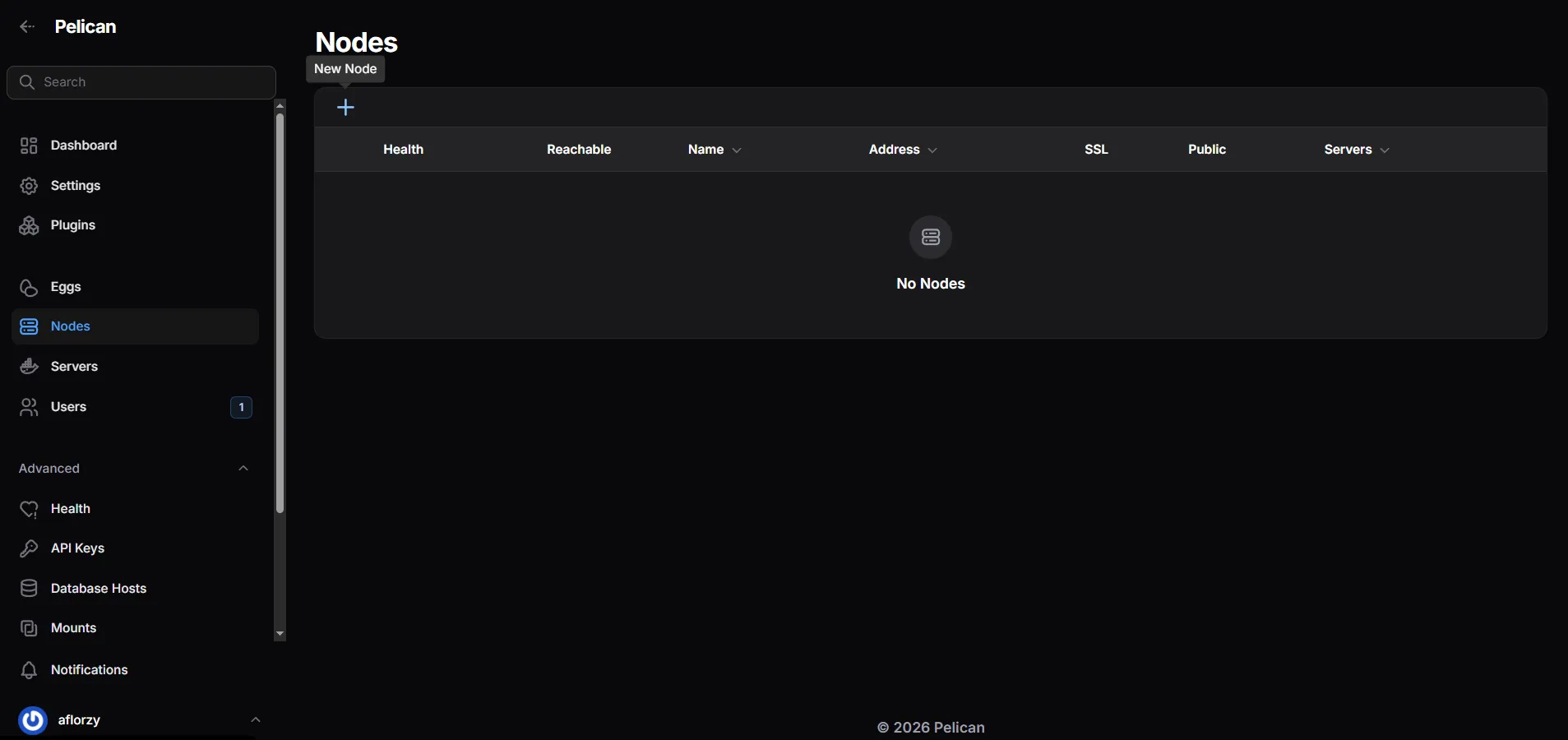
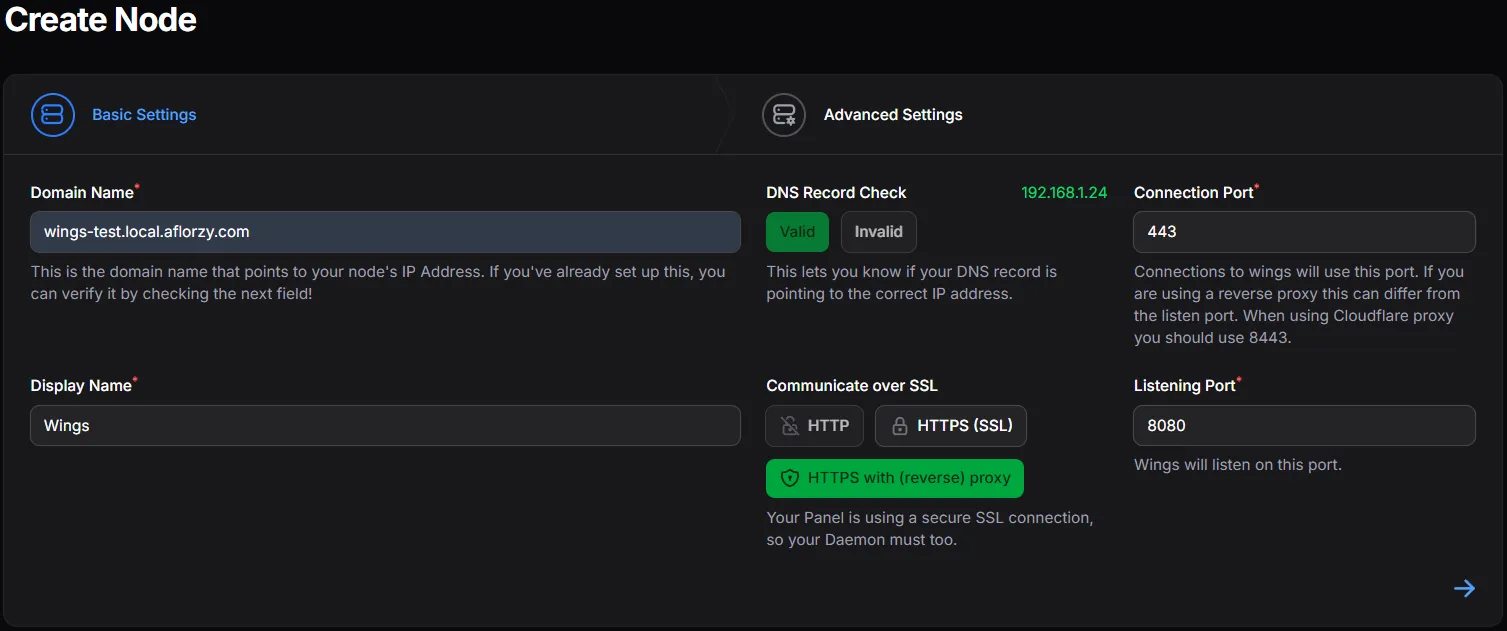
Then navigate to the Nodes tab in the Pelican panel and click “Create Node”. Fill out the form with the following settings:
- Domain name:
wings.local.example.com(same as the domain you set up in NPM, no https:// prefix) - Display Name:
Wings Node 1(or whatever you want to call it) - Communication of SSL: “HTTPS with (reverse) proxy”
- Connection Port: 443
- Listening Port: 8080
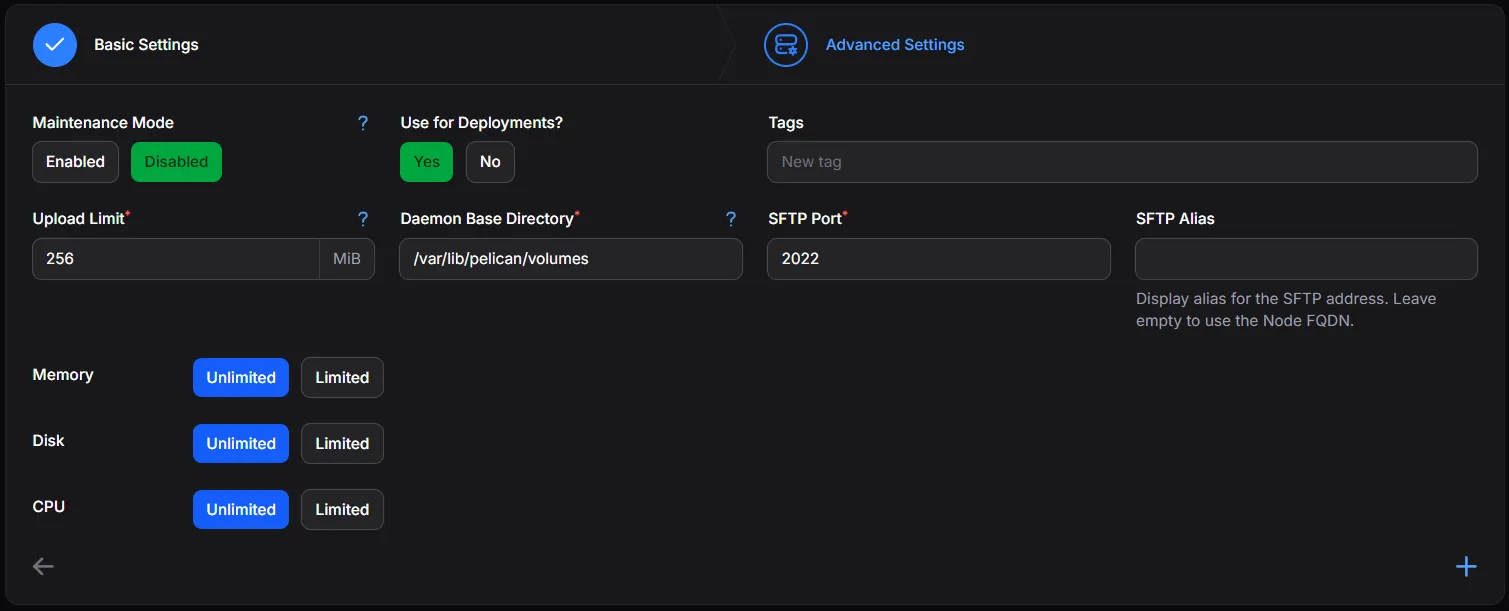
Click the Forward arrow in the bottom right, then update any Advanced Settings you’d like. Note that the “Upload Limit” cannot exceed what was set in the Caddyfile for the panel (512M in our case). It might be beneficial to set Memory, Disk, and CPU limits if your server’s resources are shared with other services. Click Create Node when you’re done.
The next screen will provide you with your config.yml file. Copy and paste them into a new file on your server at /etc/pelican/config.yml. This file is not in our main ~/pelican directory because the location must match the same path as inside the Wings container, which is also /etc/pelican/config.yml. This is already defined as a bind-mount in our docker-compose.yml file.
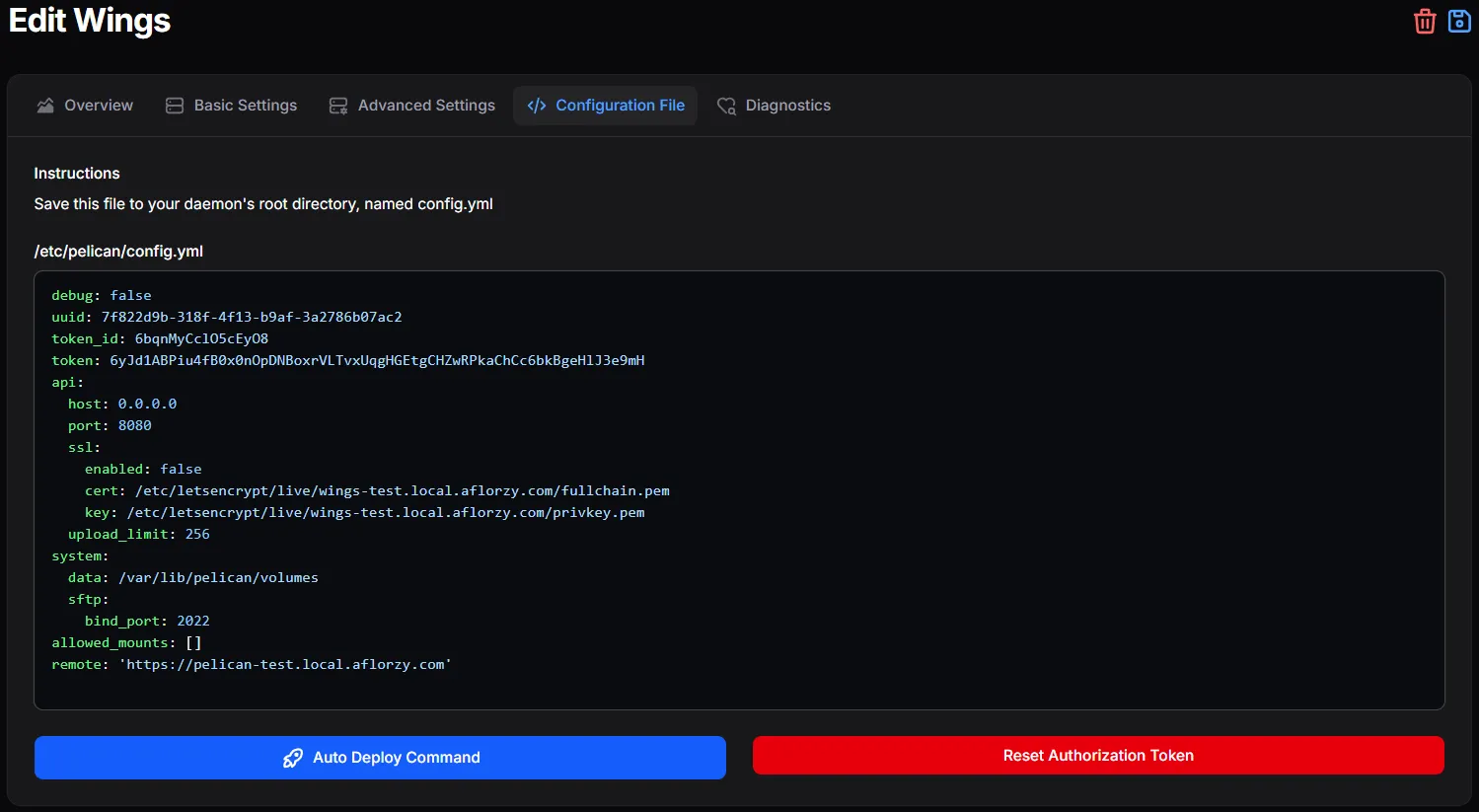
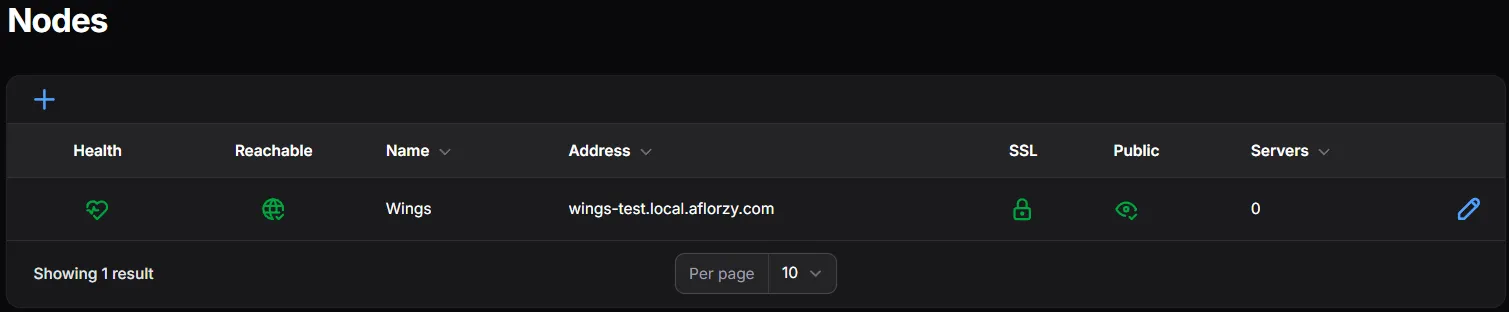
Restart your Docker stack again with docker compose down && docker compose up -d and check the Wings logs with docker logs -f pelican_wings. You should see that Wings has successfully connected to the panel. The most important part is the “Green Heart” shown in the Nodes tab of the panel, which indicates that the node is healthy and connected to the panel. If you don’t have the green heart, resolve that before continuing!
Setting up our first Minecraft server
Now that we have our Wings node set up and connected to the panel, we can create our first Minecraft server! There are two small things we need to take care first: provisioning Port Allocations and importing an Egg for Minecraft servers.
For the port allocations, go to the Nodes tab in the panel, click on the “Edit” Pencil icon on the right side of your node, then scroll to the bottom of the page and find “Allocations”. Click the “Create Allocation” button in the top left of that section.
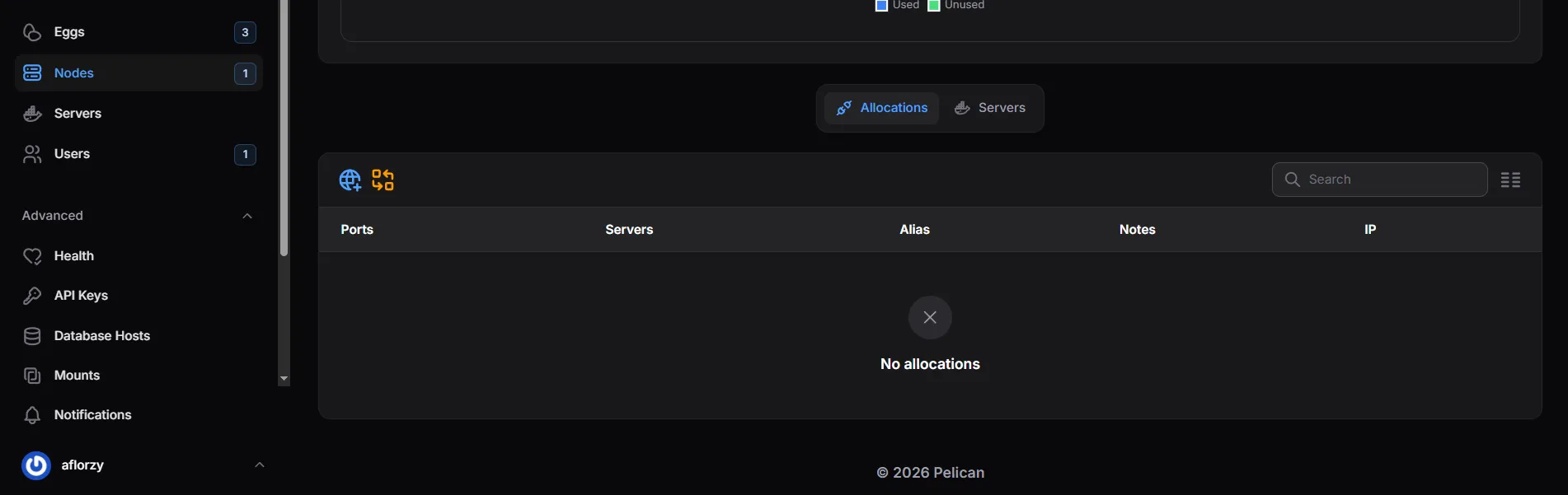
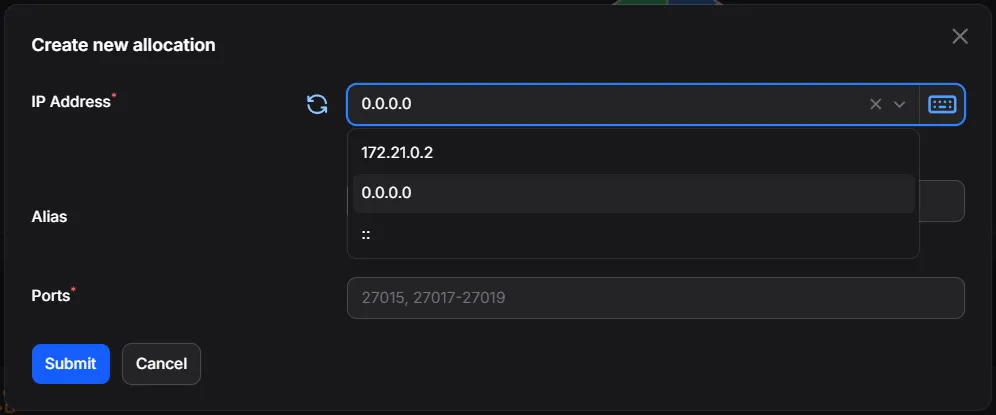
A window will pop up to “Create new allocation”. In the “IP Address” dropdown, choose 0.0.0.0. Then in the “Ports” field, enter a range of ports that you want to use for your Minecraft servers. For example, you could enter 25560-25569 to allocate 10 ports for Minecraft servers. Click “Submit” when you’re done.
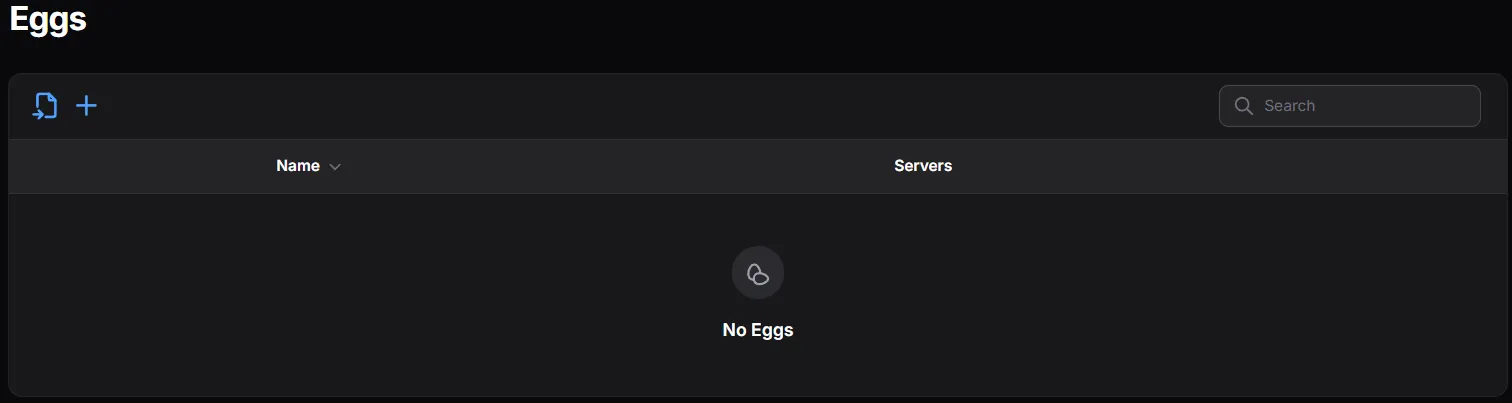
Then go to the Eggs tab in the panel and click “Import” in the top left of the section.
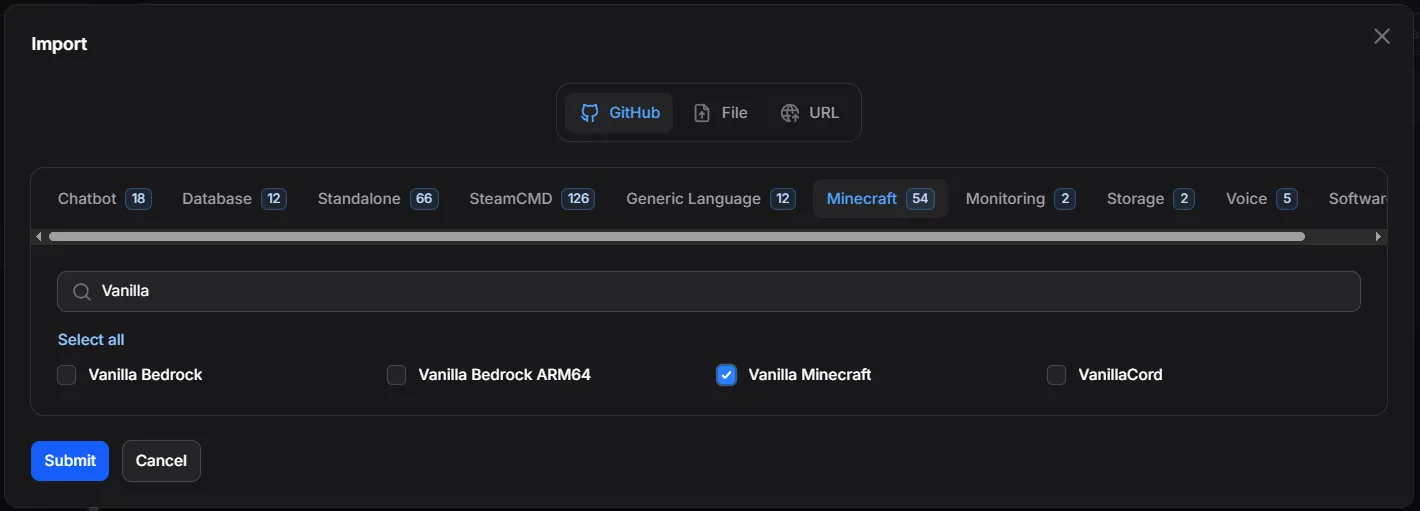
Find the eggs you want to enable for your panel. There are tabs for each category of egg you can add. I selected “Minecraft”, then searched for “Vanilla” and chose the “Vanilla Minecraft” egg. For modded servers, choose “Fabric” or “Forge Minecraft” instead. Click the “Submit” button when you’re done.

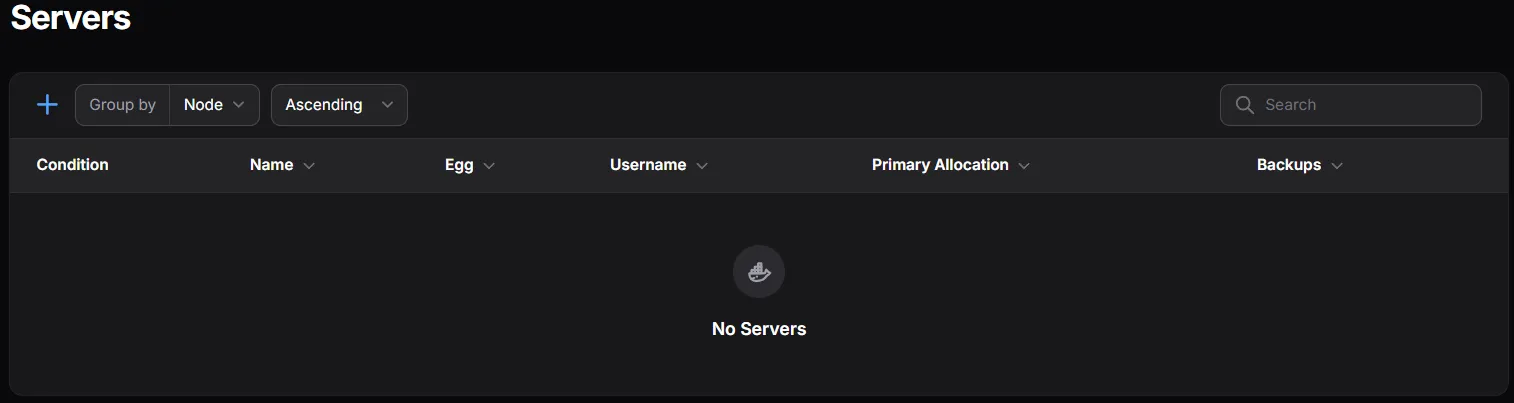
Now for the fun part! Go to the “Servers” tab in the panel and click “New Server”.
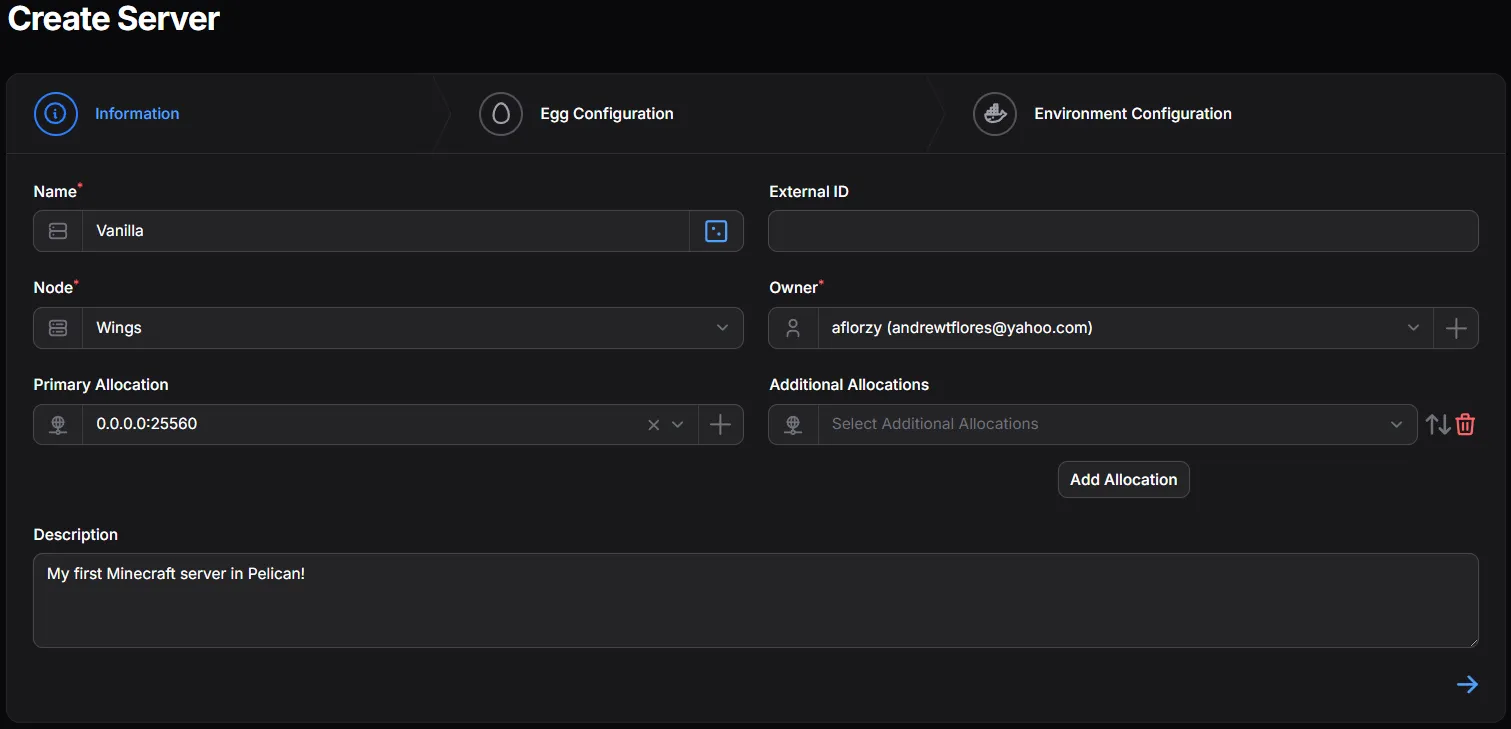
Give the server a Name, the Node should be auto-selected, and choose a port allocation from the dropdown (one of the ports you allocated earlier). Then click “Next” in the bottom right.
Choose your Egg from the dropdown (the one you imported earlier) and click “Next” in the bottom right. No other settings on this step should need to be changed.

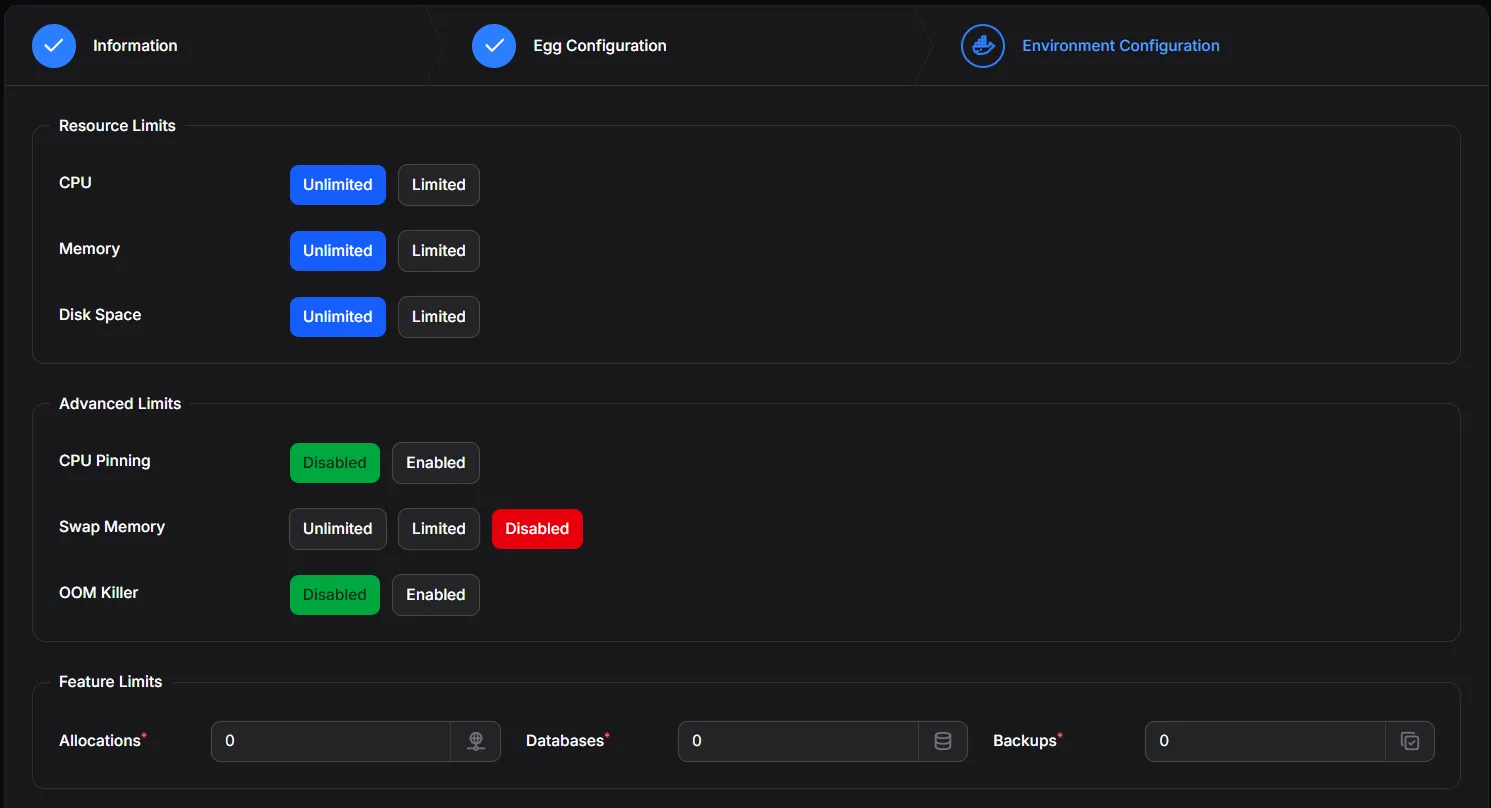
Set server-specific environment variables if you’d like, but for a basic Minecraft server, there is no need to change anything here. Click “Create Server” in the bottom right.
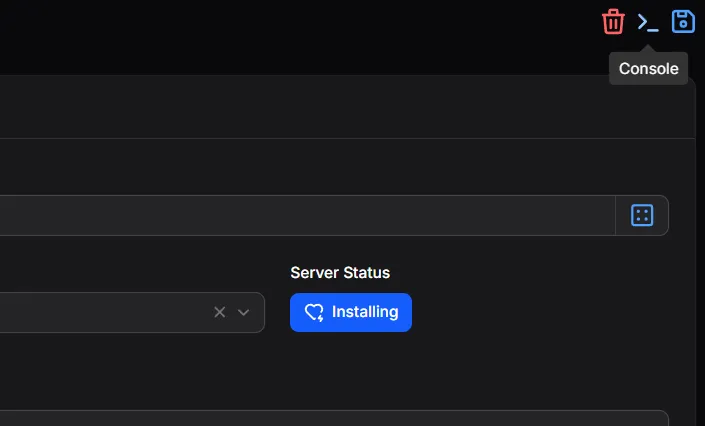
If all goes well, you’ll see the server “Installing”! Click the “Console” button in the top right to see the status.
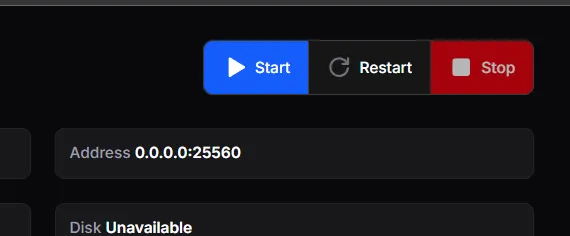
If it doesn’t start automatically, click the “Start” button!
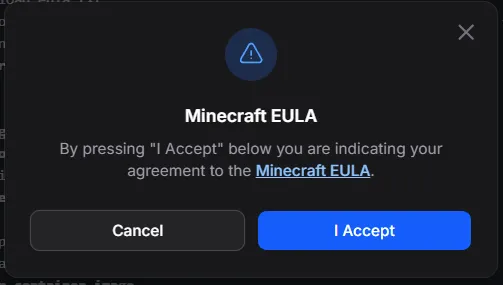
Accept Minecraft’s EULA.
Conclusion
Congratulations! Your Minecraft server is now up and running with Pelican in Docker! You can connect to it using your server’s IP address and the port you allocated (e.g., 192.168.1.100:25560). You can also manage the server from the Pelican panel, where you can start/stop the server, view logs, and change settings.